Log In and Select, Create or Delete Matter
The ZyLAB ONE user interface is entirely web-based. The following browsers are supported (older versions or other browsers might not work as expected):
-
Chrome: As of version 95.0.4638.54 (Official Build) (64-bit)
-
Firefox: As of version 93.0 (64-bit)
- Edge Chromium: As of version 94.0.992.50 (Official build) (64-bit)
One or more accounts have been created by the Administrator.
|
|
Note: ZyLAB continuously invests in the security of your account. As of September 1, 2026, signing in to ZyLAB ONE includes an additional step: choosing how you want to verify your identity. Alongside the existing SMS verification, you can now sign in using the Microsoft Authenticator app. An authenticator app generates your verification code locally on your phone, without relying on a mobile network — making it a more reliable method that's better protected against fraud patterns increasingly affecting SMS verification worldwide, such as phishing and SIM-swapping. |

Instructions
-
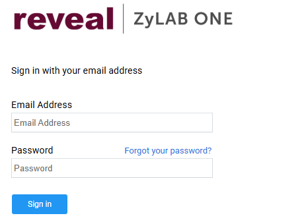
Browse to your ZyLAB ONE website. If you do not know the correct address anymore, view your invitation email or contact your Administrator. If you did not receive an invitation email, please check your Spam or Trash folder.
The Login screen appears.
-
Enter your email address and password, then select Sign in. If you do not know your email address or password, contact your Administrator.
-
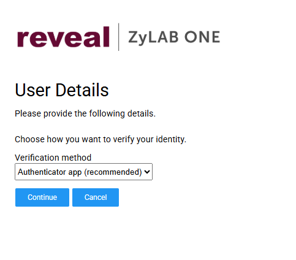
The User Details screen appears and asks you to choose how you want to verify your identity. Under Verification method, select the Authenticator app(recommended) and click Continue. We recommend the Microsoft Authenticator app for stronger account security. SMS verification remains available if you prefer it.

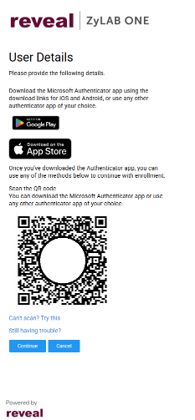
- If you haven't linked the Microsoft Authenticator app to your account yet: Download it from Google Play (Android) or the App Store (iOS), then open the app and scan the QR code shown on screen to link it. This is a one-time step.
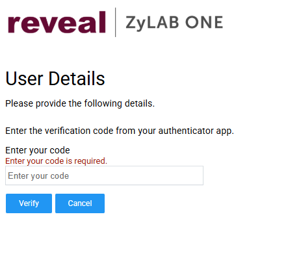
- Open the Microsoft Authenticator app, read off the 6-digit verification code, and enter it on screen. Click Verify to continue. (If you chose SMS verification instead, enter the code you received by text message the same way.)
-
The Select Matterscreen appears. In the example below we searched on the matter name using the Search Filter.
-
Select the tile of a Matter to open it. If no matter is available, create one via Create Matter.
- To Continue Review, select the icon shown

|
|
Note: Other authenticator apps that support the standard TOTP method (such as Google Authenticator) may also work, since ZyLAB ONE uses this same standard. However, only the Microsoft Authenticator app has been tested and is officially supported — other apps can be used at your own discretion. |
Result
You have started a review session or continued with an existing one.
|
|
Note: The matter name can always be seen in the top right corner of the screen.
Click |
 to select another matter.
Delete Matter
Click on the Delete  icon to delete the matter.
|
|
Note: Deleting the matter here will also delete the processing case. |