Frequently Asked Questions
Upload
 Is it possible to upload multiple custodian data at one time?
Yes! After adding the initial file or folder on the Upload screen select Add Files or Add Folders in the upper right corner.
Select each File Group individually to set Custodian and Source.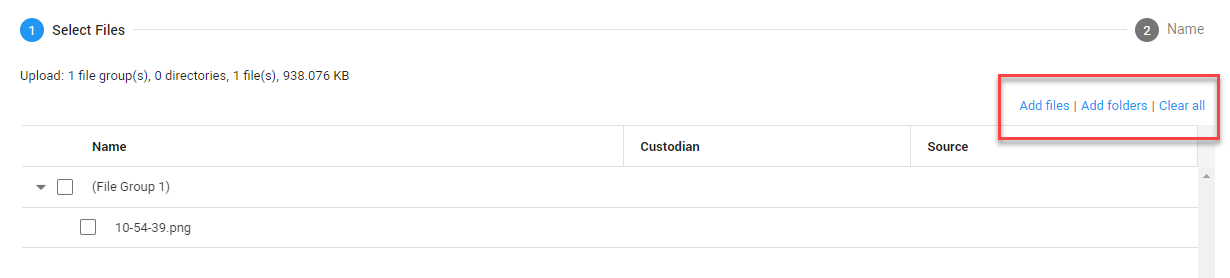
Search
What is the easiest way to search for all emails between two people?
To find emails that are only between two people use the emailparticipant field and the One-to-One emailclassification field.
For example: emailparticipant=*dodd* AND emailparticipant=*schneider* AND emailclassification= One-to-One
Watch the Finding Emails between two People video.
How do I search for the pattern of a U.S. Social Security Number?
Use the following Regular Expression query to find the xxx-xx-xxxx pattern commonly used to represent a U.S. Social Security Number: [0-9]{3]-[0-9]{2}-[0-9]{4}
How do I identify redacted documents?
To find documents containing redactions, use the field “contains redaction” or look for a facet called “Contains Redaction”.
How can I determine if a document has hidden content such as comments or redline changes?
When viewing a document the  icon next to the document name
notifies the user when hidden content is detected. Hover above this icon to see which hidden
content types are detected. If detection of hidden content failed, a red icon
icon next to the document name
notifies the user when hidden content is detected. Hover above this icon to see which hidden
content types are detected. If detection of hidden content failed, a red icon  is shown.
Note, the content can only be reviewed by downloading the document in its native format.
is shown.
Note, the content can only be reviewed by downloading the document in its native format.
Learn more here: Hidden Content
Is it possible to search for a preceding term?
Yes! Use the query p/n to search for preceding terms. For example:
cat p/3 dog would find cat where it precedes the term dog by at least 3 terms.
Learn more here: Precedes Operator.
How can I find documents that have been produced?
The easiest way to view documents that have been produced
is by viewing the Productions Overview Facet and selecting the production set.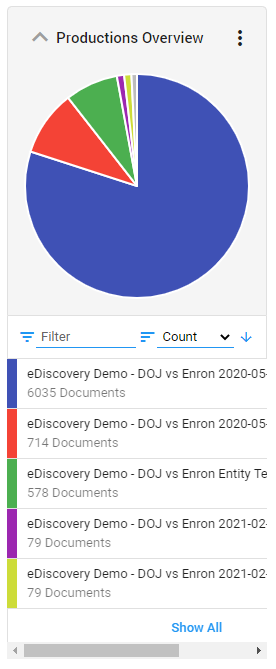
How can I see a produced version of a document?
Once a document has been produced you can view it from the document image Production View tab.
Learn more here: Productions
Review
Is it possible to tag documents at the family level or an entire conversation?
Yes! While viewing a document, you can tag families, conversation and duplicates using the scope settings.
Learn more here: Tagging
Is it possible to bulk redact?
Yes! You can bulk redaction information by creating an Auto-Redaction Rule.
Learn how here:
Auto Redactions
How can I create a privileged log?
Using ZyLAB ONE’s Custom Views and the Reports feature from the List View you can easily create custom reports such as a Privileged Log.
Watch the Creating a Privilege Log video.
How can I see a timeline of all the document dates in my matter?
A Timeline Feature is accessible from the Matter Overview dashboard. Using the Timeline you can filter by various dates, including: Created, Modified, Email Sent and Email Delivery dates.
Is it possible to change the default review status in a matter?
Yes! You can change the Reviewed Status in any matter by selecting Review Status from the Configuration Menu.
Learn more here: Review Status
How do I edit a custodian or source name?
If you have the appropriate role you can use the Batch Field update feature to update metadata and other fields. This feature is used in connection with Batch Search.
Learn more here: Batch Search
How do I create a review batch to assign to a reviewer?
Create Review Batches in the Document List via the Settings icon. Once created they can be assigned to specific reviewers.
Learn how here: Review Batches
Is it possible to do a bulk download of documents?
Yes! You can download a set of documents as pdfs using the Batch Download feature from the Document List view.
Learn how here: Batch Downloads
Is it possible to bulk un-tag documents?
Yes! To bulk- un-tag documents, filter for the documents to be untagged, select Bulk Tag from the document list menu, then select Untag and select the tag to be removed.
See how here: Bulk Tagging
Can I create my own review tags?
Yes! If you have the appropriate role permission you can create custom tags for a matter from the Configuration menu.
Learn how here: Tags
How can I share a document with another user?
There are several ways to share a document with another user. (1) Open the document in the document viewer, copy the link in the browser bar then send it to the user via email, (2) share the document ID with the user, or (3) use the Further Review tag.
Security
Does ZyLAB process password protected or encrypted files?
No, since the file cannot be opened it will not be processed.
Is it possible to limit a user’s right to only a sub-set of documents?
Yes! Document level access can be set using the Document Security feature.
Learn more here: Document Security